

Working with Plans
Welcome!
A test plan is a saved set of tests you can run again and again without picking them each time. It’s great for the runs you repeat, like a regression pass before every release or a weekly smoke check.
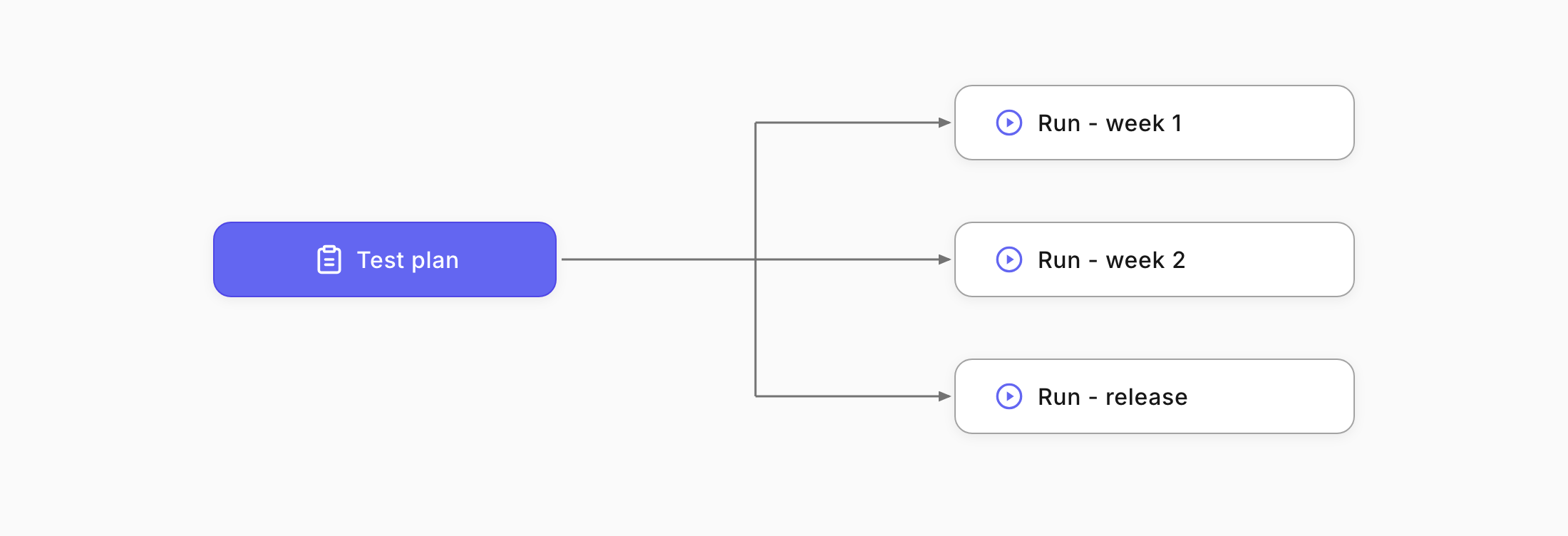
What you will do:
- Create a plan.
- Add tests to it.
- Launch a run from the plan.
Create a plan
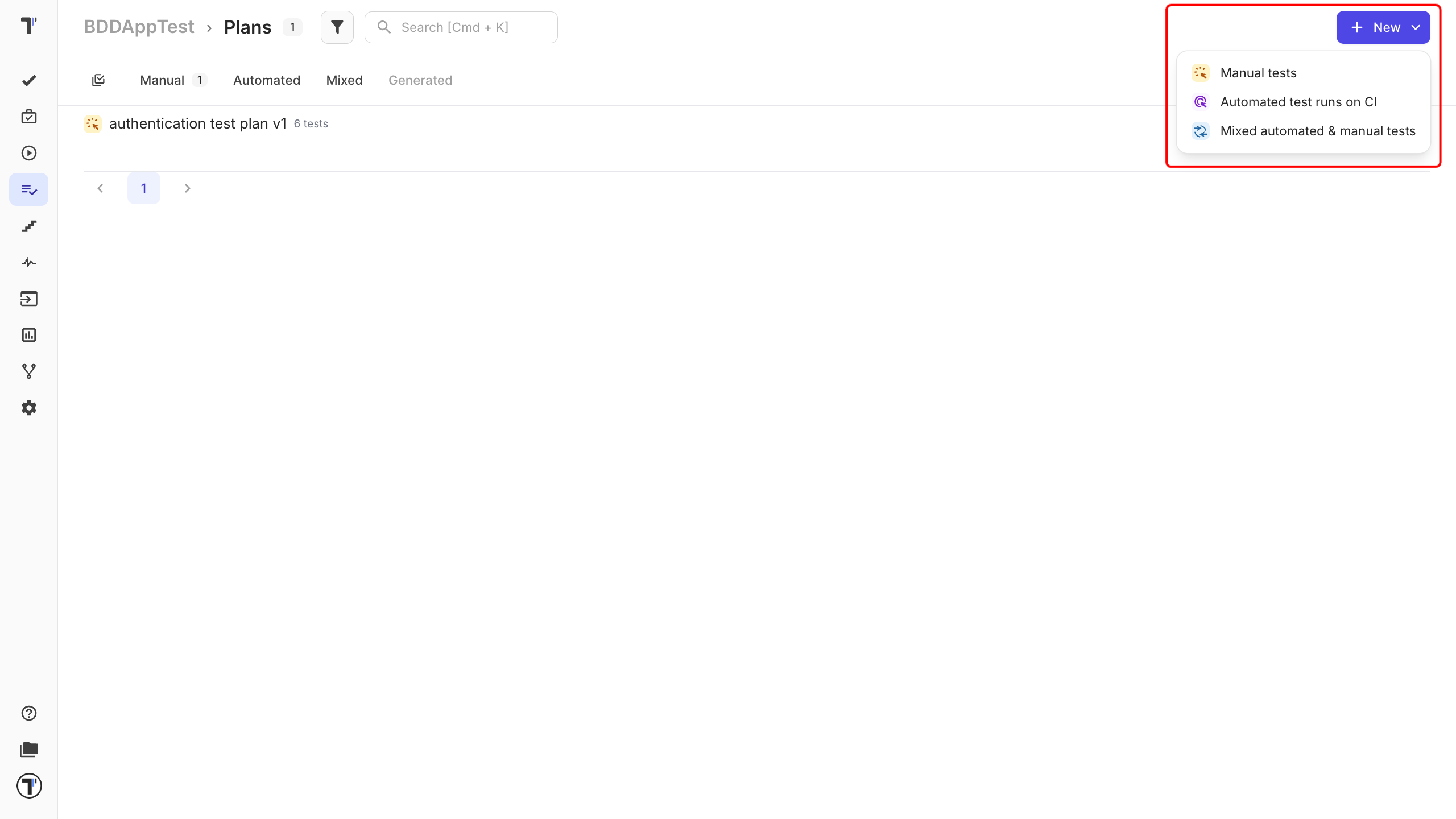
Section titled “Create a plan”- Open the Plans tab in the sidebar.
- Click + New in the top right corner.
- Choose the plan type. Select Manual to run tests manually. (Automated and Mixed plans also exist, for tests run through CI.)
- Give the plan a clear name, like “Release regression.”
Add tests to the plan
Section titled “Add tests to the plan”Now choose which tests belong in this plan.
- Pick tests from the tree by selecting folders and suites, or use a filter to grab tests by tag or priority.
- Save the plan.
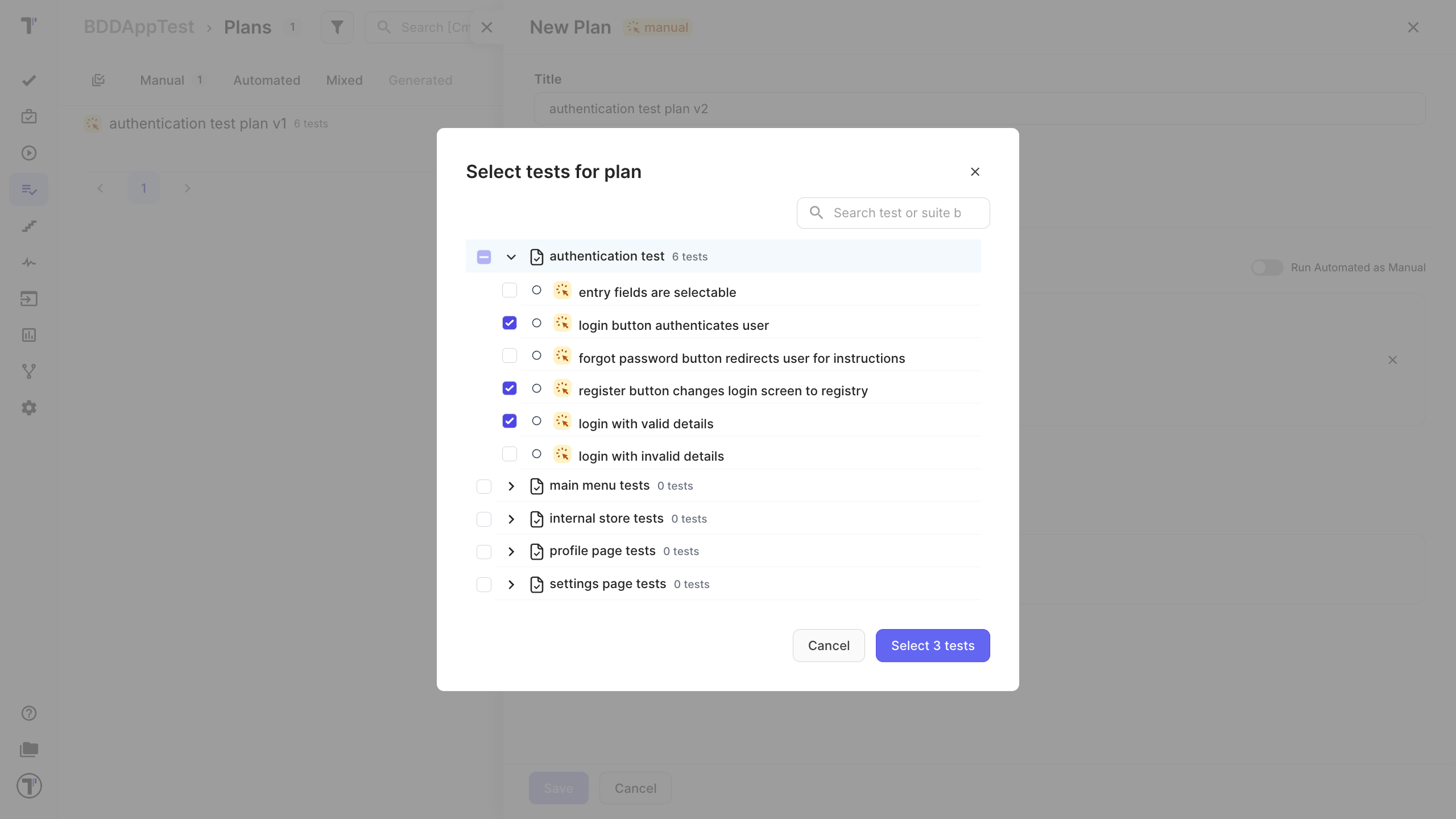
Your plan is now saved and ready to reuse. The next time you need this same set, you won’t have to pick the tests again.
Launch a run from the plan
Section titled “Launch a run from the plan”- Open your plan and start a manual run from it.
- Work through the run, marking each test Passed, Failed, or Skipped, then click Finish Run.
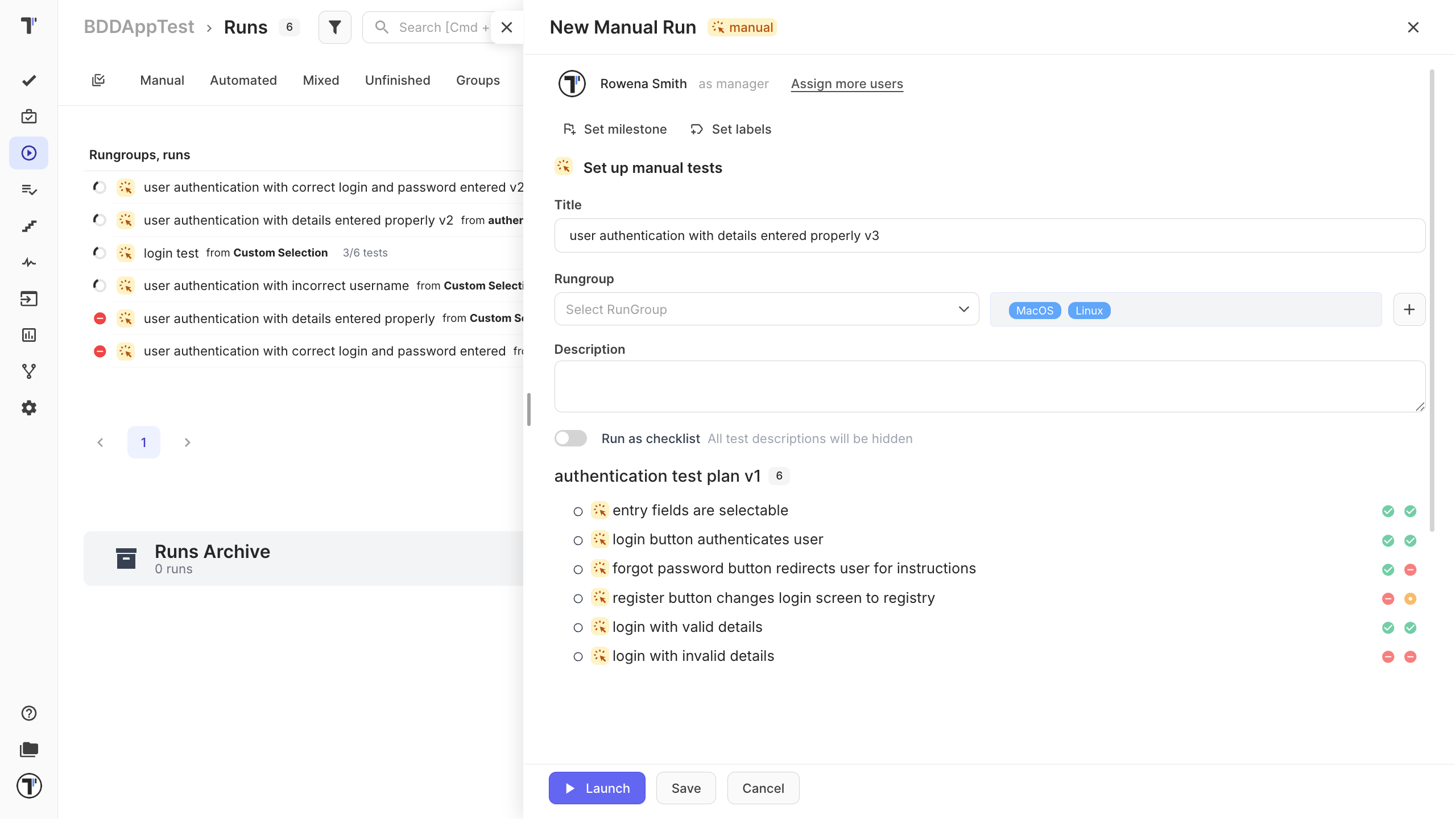
For the full run walkthrough, see Run Manual Tests.
Next steps
Section titled “Next steps”- Run your plan whenever you need it in Run Manual Tests and Run Automated Tests.
- Prepare a plan run to start later with Scheduled Runs.
- Keep plans tidy with labels, see Tags & Labels.